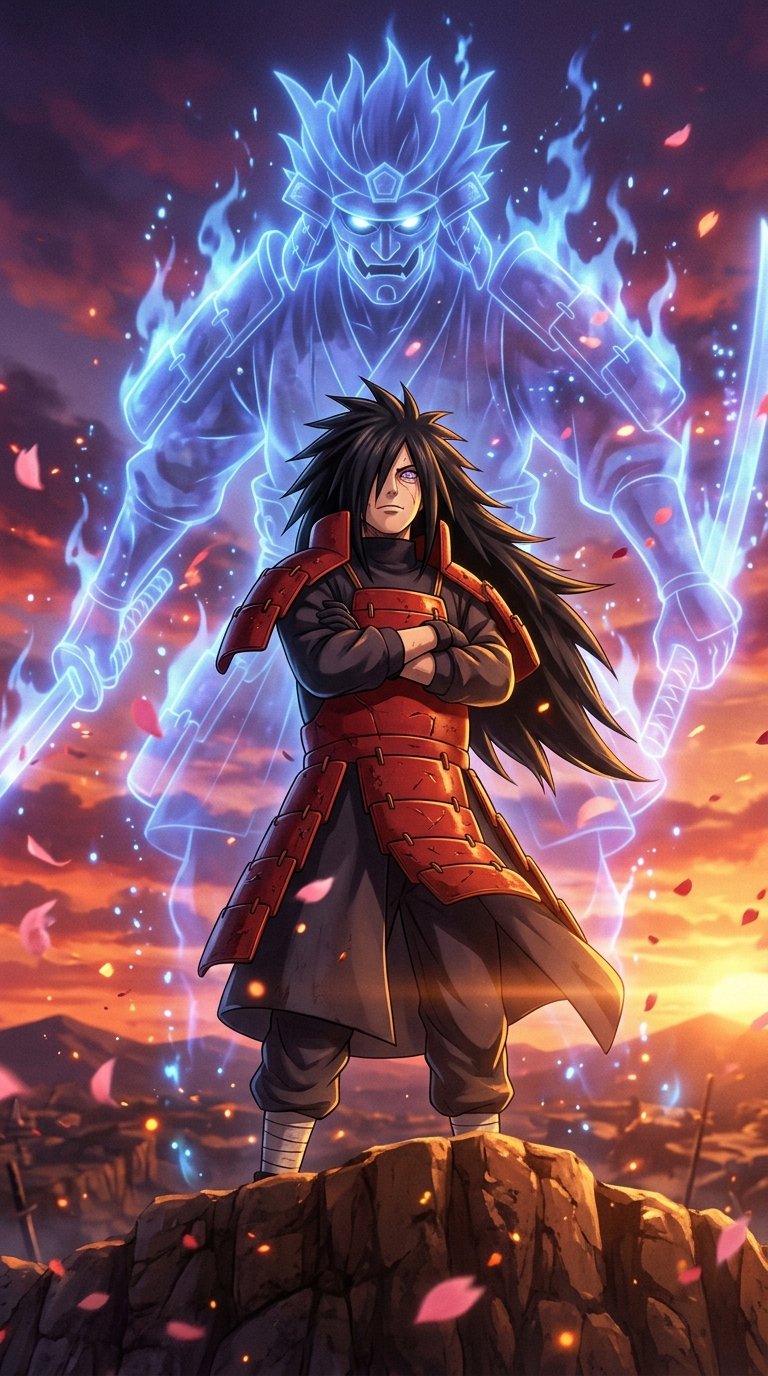
Practical layout tips for anime lock screens: where to place the character, how to use the iPhone depth effect, and which Anime4KWall wallpapers leave the most room for the clock and widgets.
The most common problem with anime wallpapers is not resolution. It is the clock. A great piece of art can turn into a mess on the lock screen when the time lands across a character's eyes and notifications cover the rest. A few simple rules fix almost all of it.
Know where the lock screen covers your image
Every lock screen has the same basic zones:
- Top fifth: the clock, date and (on iPhone) lock-screen widgets.
- Middle: mostly clear, apart from the occasional notification that slides in.
- Bottom fifth: notifications stack here, along with the flashlight and camera shortcuts.
So the best place for the character's face is the middle third of the screen, slightly below center. Art where the subject is already drawn there needs no adjustment at all.
Wallpapers that already get it right

Zenitsu Lightning Dragon (736×1308) is a textbook lock-screen wallpaper. Zenitsu stands small at the bottom of a near-black frame, and the golden dragon rises through the middle, so the clock sits on dark background and the art stays visible.
- Satoru Gojo Unlimited Blue: Gojo stands in the center with dark sky above him.
- Roronoa Zoro Blue Aura: Zoro in the middle of a black frame, lit by blue light.
- Kaneki Kagune Glow: a black background with the red kagune as the only bright element.
- Obito Rinnegan Mask: a small figure under a giant mask, with the mask's spiral behind the clock.
Contrast: make the digits pop
The clock is drawn in white or a light tint by default. It is readable over dark or mid-tone areas and disappears over bright skies, white hair or glowing auras. Before you set a wallpaper, look at the top fifth of the image:
- Dark or saturated (deep red, purple, navy): white digits work perfectly.
- Bright or busy: on iPhone, tap the clock while editing the lock screen and pick a darker color or a heavier font. On Android, many phones let you change the clock style and color under the lock-screen settings.
The iPhone depth effect
On iPhones running iOS 16 or later, the lock screen can place part of the image in front of the clock. iOS detects a clear subject, such as a person or a character, and layers it over the time. It looks great with anime art when it works.
It works best when:
- The character has a clean outline against a simpler background.
- The character's head sits near the clock but does not cover most of it. iOS turns the effect off if too much of the time would be hidden.
- You have no widgets directly under the clock. On many iOS versions, adding lock-screen widgets turns the depth effect off.
To try it, edit your lock screen, tap the three-dot button and make sure Depth Effect is checked. Then drag the image so the character's head overlaps the bottom of the clock. Art with one clear figure, like Sukuna Domain Seal or Tanjiro Red Portrait, is a good candidate.
Android lock screens
Android lock screens differ by brand, but the same principles apply. A few platform-specific tips:
- Pixel: under Wallpaper & style, you can choose between several clock styles. The large, two-line clock takes up a lot of space; switch to the smaller one if it covers your character.
- Samsung: long-press the lock screen to edit it. You can move the clock, change its font and color, and resize it, which makes it easy to keep it off a character's face.
- Notifications: if notification cards cover the bottom of your art, most phones let you show only icons on the lock screen instead of full cards.
Whatever the brand, preview the wallpaper with a couple of notifications showing before you decide. That is how you will see it most of the time.
When the crop is wrong
Most wallpapers are 9:16, while most phones are taller (about 19.5:9 or 20:9). The phone fills the screen by cropping the left and right edges. If the character is not centered in the original art, part of it may be cut off.
- Open the wallpaper full screen before downloading to see the whole image.
- When setting it, drag the image sideways to choose which edge to lose.
- Avoid zooming in to fix the crop. It enlarges the image and makes it softer; drag instead.
- Prefer taller files when you can. Goku Power Aura (996×2160) and Naruto Double Exposure (1200×2660) are already close to phone shape and barely crop at all.
Pair your lock screen with your home screen
You do not have to use the same image twice. A busy, dramatic image makes a great lock screen, but the same art behind app icons can be hard to read. A good pattern is a striking character image on the lock screen and a calmer image from the same series on the home screen: for example, the busy Legendary Broly Burst on the lock screen with the flat red background of Goku Arms Crossed 2 behind your apps. On iPhone, you can also simply choose Blur for the home screen when setting the wallpaper.
Checklist
- Face in the middle third, not the top fifth.
- Darker or saturated area behind the clock.
- Drag to fix the crop, never zoom.
- Try the depth effect on clean silhouettes.
- Use a calmer image or blur for the home screen.
Our guides on setting a wallpaper on iPhone and on Android cover the basic steps for each platform.